

Player Theme Settings
Configure the player’s appearance and interface elements to align with your design preferences.1. Open the Player Settings
From the left sidebar of your library, click on Settings and then select Player to open the player customization page.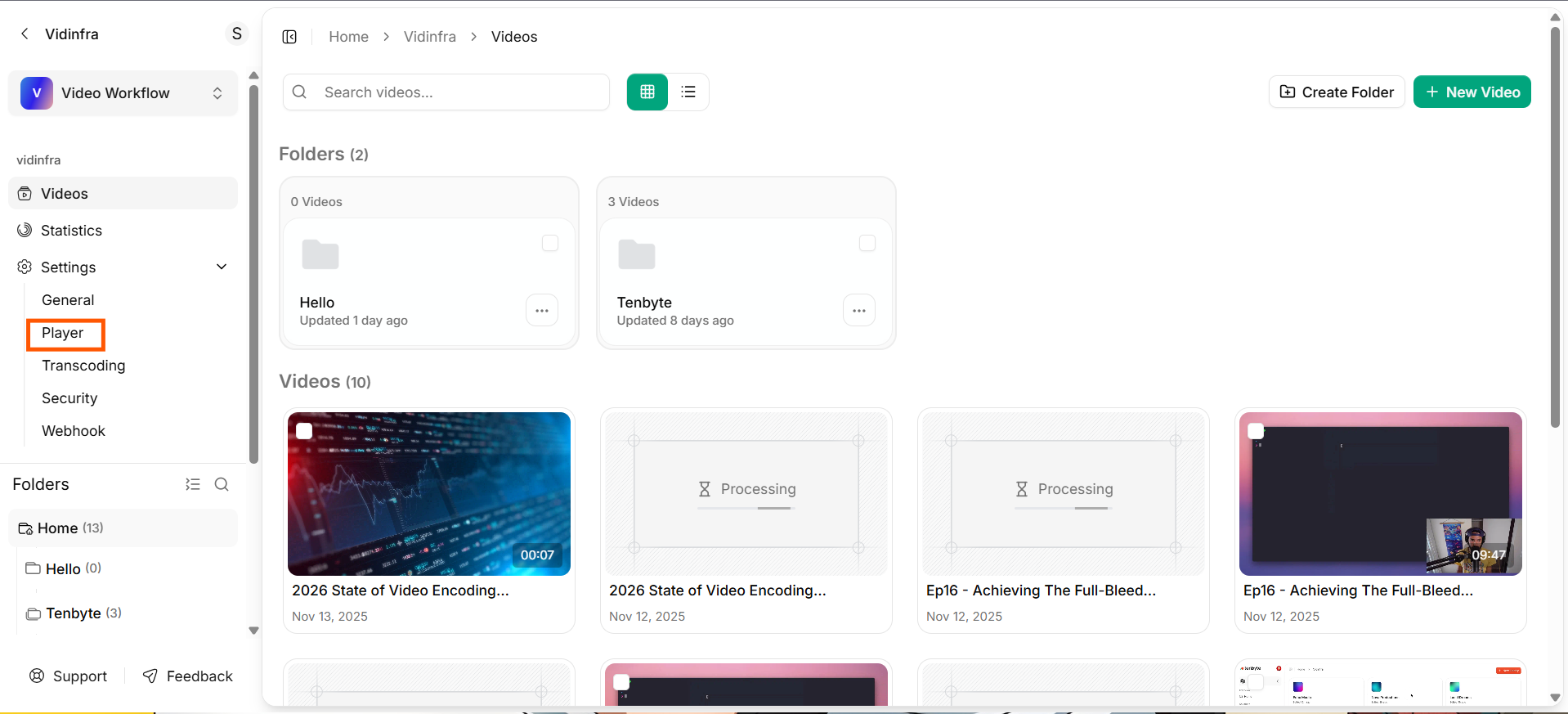
Player Settings
- This section lets you control how your video player looks and behaves across devices.
- You can edit these players or create a new one from the top right corner based on your needs.
2. General Info
The General Info section lets you define the basic details and visual style of your video player.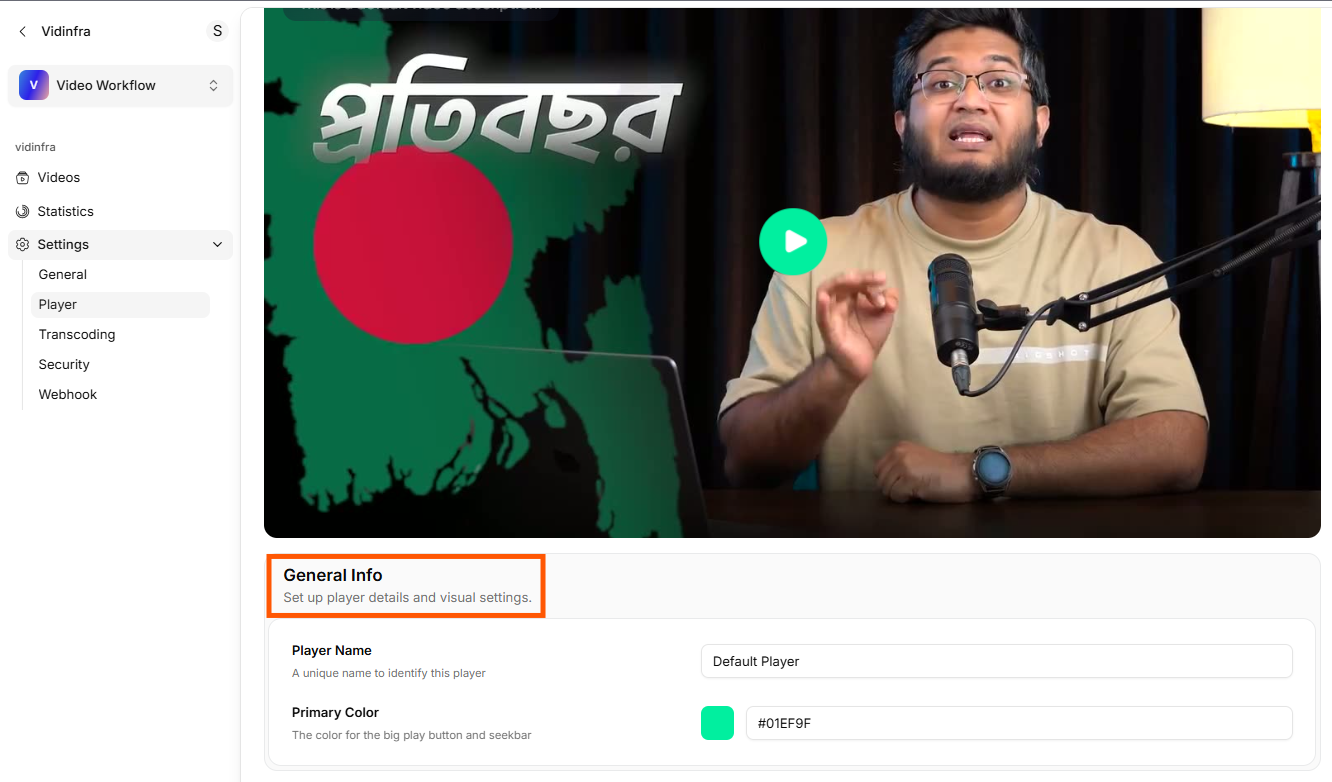
Player Configurations
Player Name
Enter a name to identify this player preset. This helps you manage multiple players—for example, different themes for mobile, web, or specific projects.Primary Color
Choose the main color used in the player interface. This color is applied to key elements such as:- The large play button
- Progress bar and seekbar
- Action highlights
3. Player Features
The Player Features section lets you control how the Vidinfra player behaves during playback. Each toggle enables or disables a specific capability that affects the viewer experience.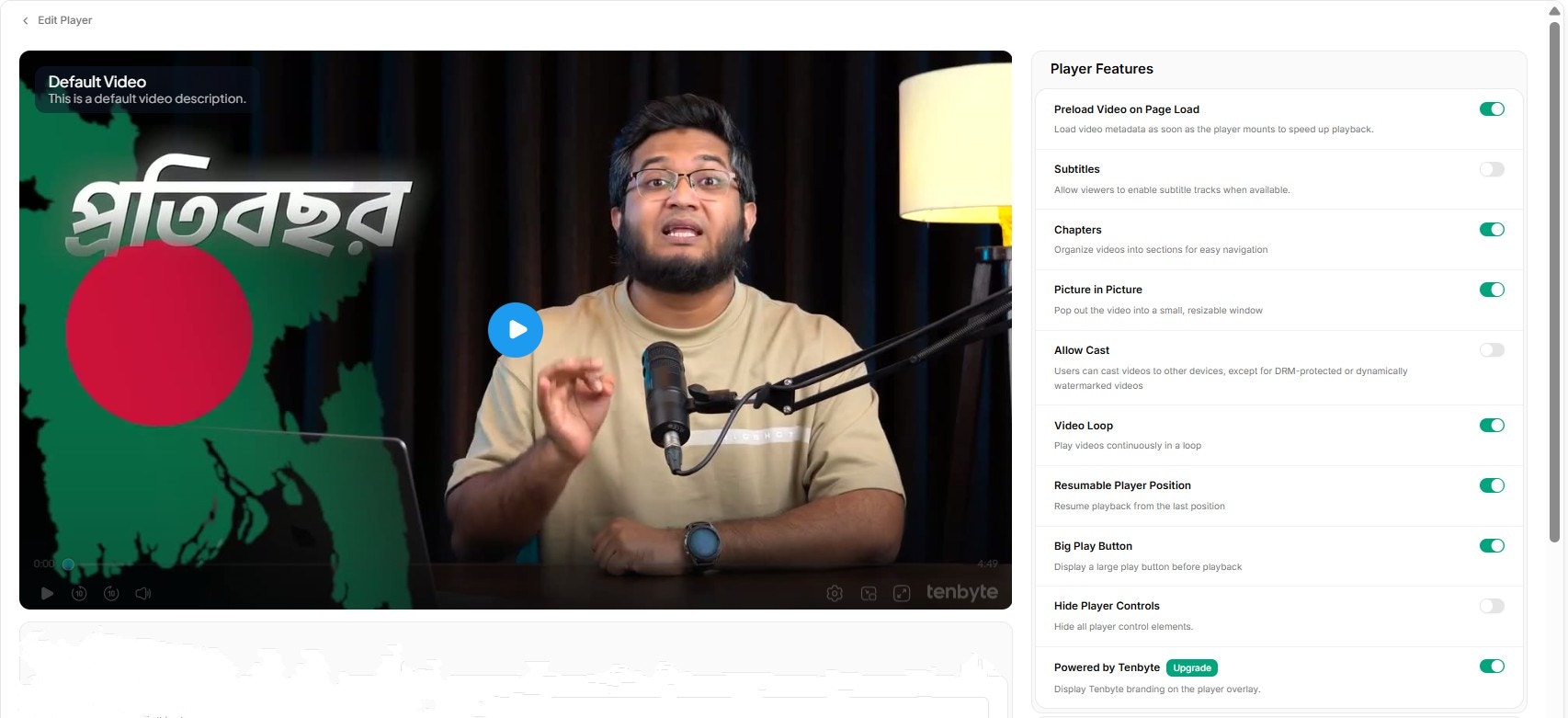
Player Features
Preload Video on Page Load
Loads video metadata as soon as the page opens. This reduces start time and improves playback speed.Subtitles
Allows viewers to turn on subtitle tracks if you uploaded any in the video settings.Chapters
Shows chapter markers inside the player so viewers can jump to key parts of the video.Picture in Picture
Lets viewers pop the video into a small floating window while browsing other tabs or apps.Allow Cast
Enables casting to supported devices like smart TVs. Not available for DRM or watermarked videos.Video Loop
Restarts the video automatically after it finishes.Resumable Player Position
Saves the viewer’s last watch position, allowing them to continue from where they left off.Big Play Button
Displays a large play button at the center of the video before playback.Hide Player Controls
Removes all control buttons for a clean, minimal viewing experience.Custom Overlays
Use the Brand Appearance section to add your own logo as a custom overlay or watermark on the video player.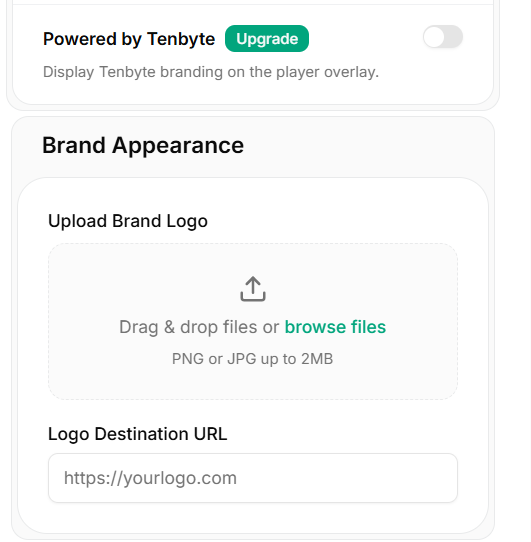
Customize your Watermark
Upload Brand Logo
You can drag and drop the image or browse files manually. The logo appears as a watermark on the player.Logo Destination URL
Add a link that viewers will be taken to when they click your logo. Use this to direct users to your website, landing page, or campaign URL.4. Advanced Settings
The Advanced Settings section is designed for developers and teams who want deeper branding or analytics integration.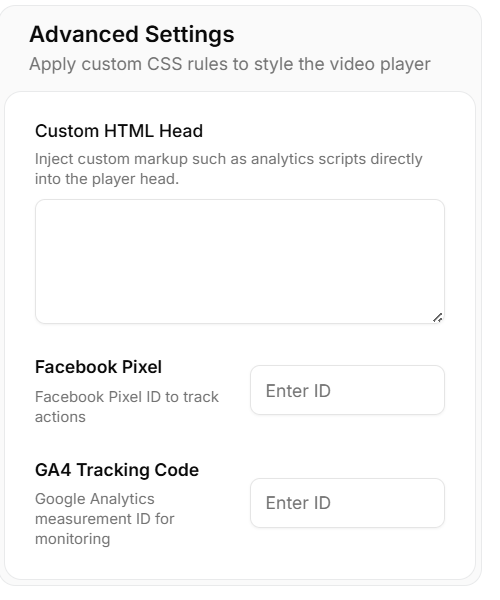
Advanced Player Settings