

Tenbyte Cloud Load Balancer
This guide shows you how to set up and manage a Load Balancer in Tenbyte Cloud.1. Select Load Balancer from Dashboard
-
From your Tenbyte Cloud dashboard, select Load Balancers to begin setting up your load balancer across your virtual machines.
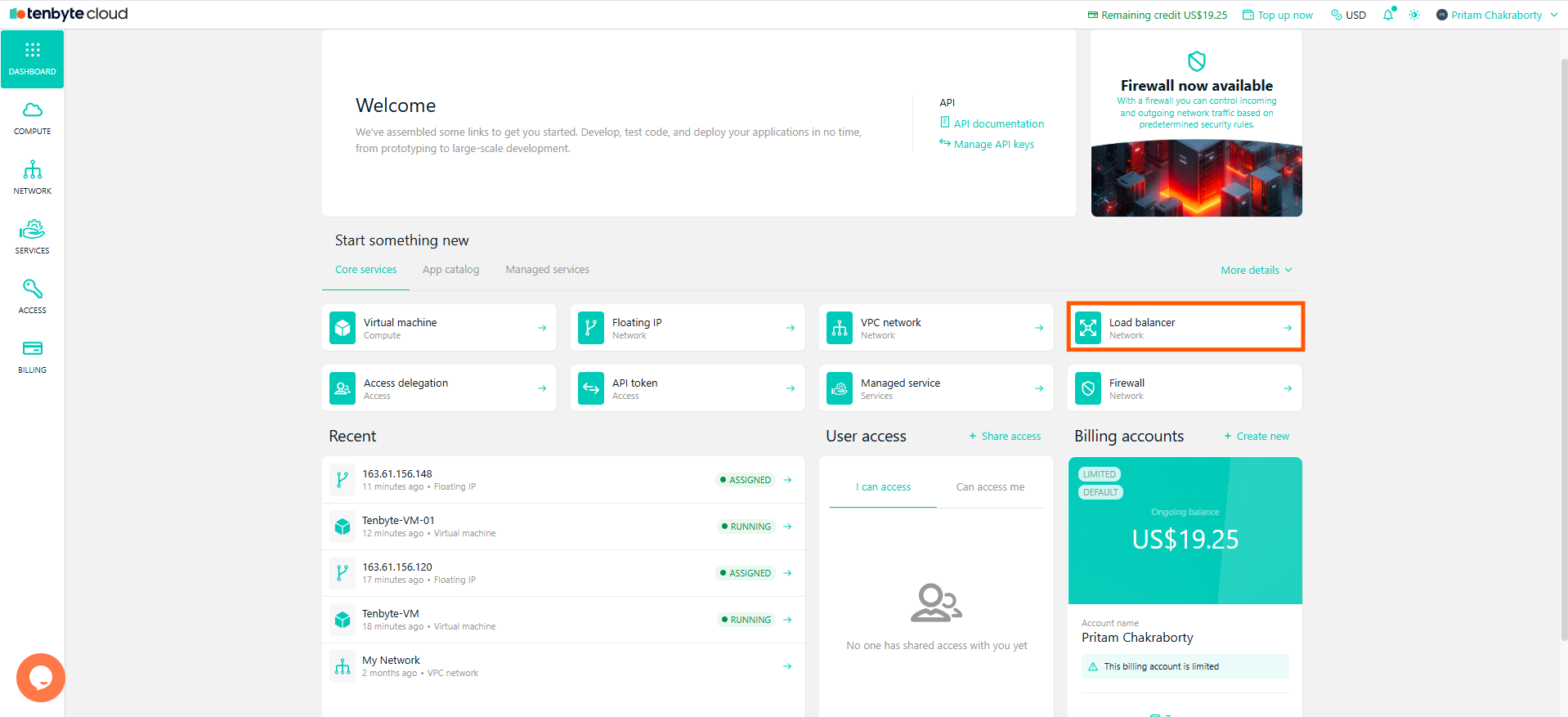
Load Balancer from Dashboard
2. Select Load Balancer Type
- Choose Load Balancer from the available options under Type.
3. Location Selection
- Under Location, select the data center where your resource will be created.
4. Public IPv4 Address
- Enable Public IPv4 if you require an external IP address for the load balancer.
Enabling Public IPv4 will add an additional US$2/month charge for the resource.
5. Select VPC Network
-
Choose an existing VPC network for your resource or create a new one to isolate and secure your virtual machines.
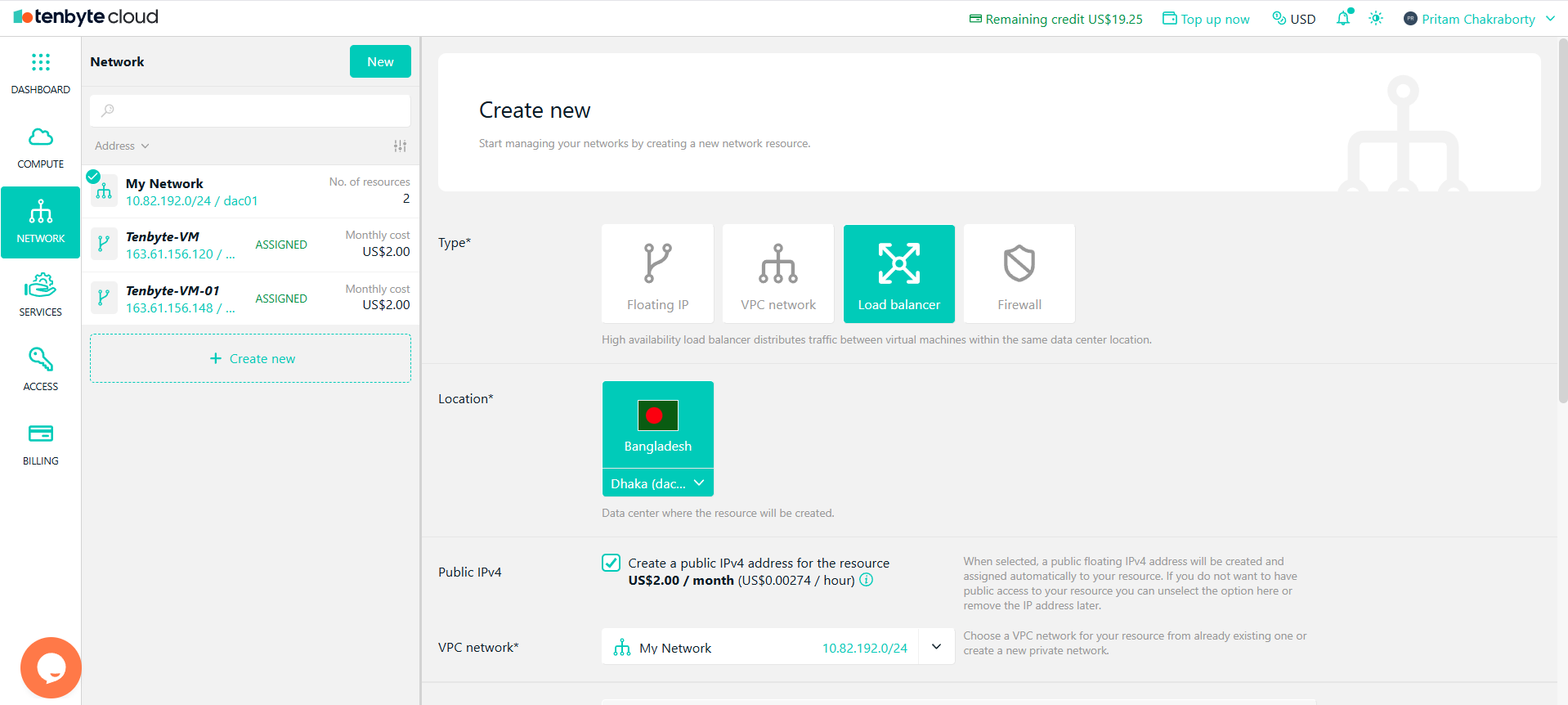
Configure your Load Balancer
6. Target Servers
-
Select the target servers (VMs) you want the load balancer to distribute traffic to.
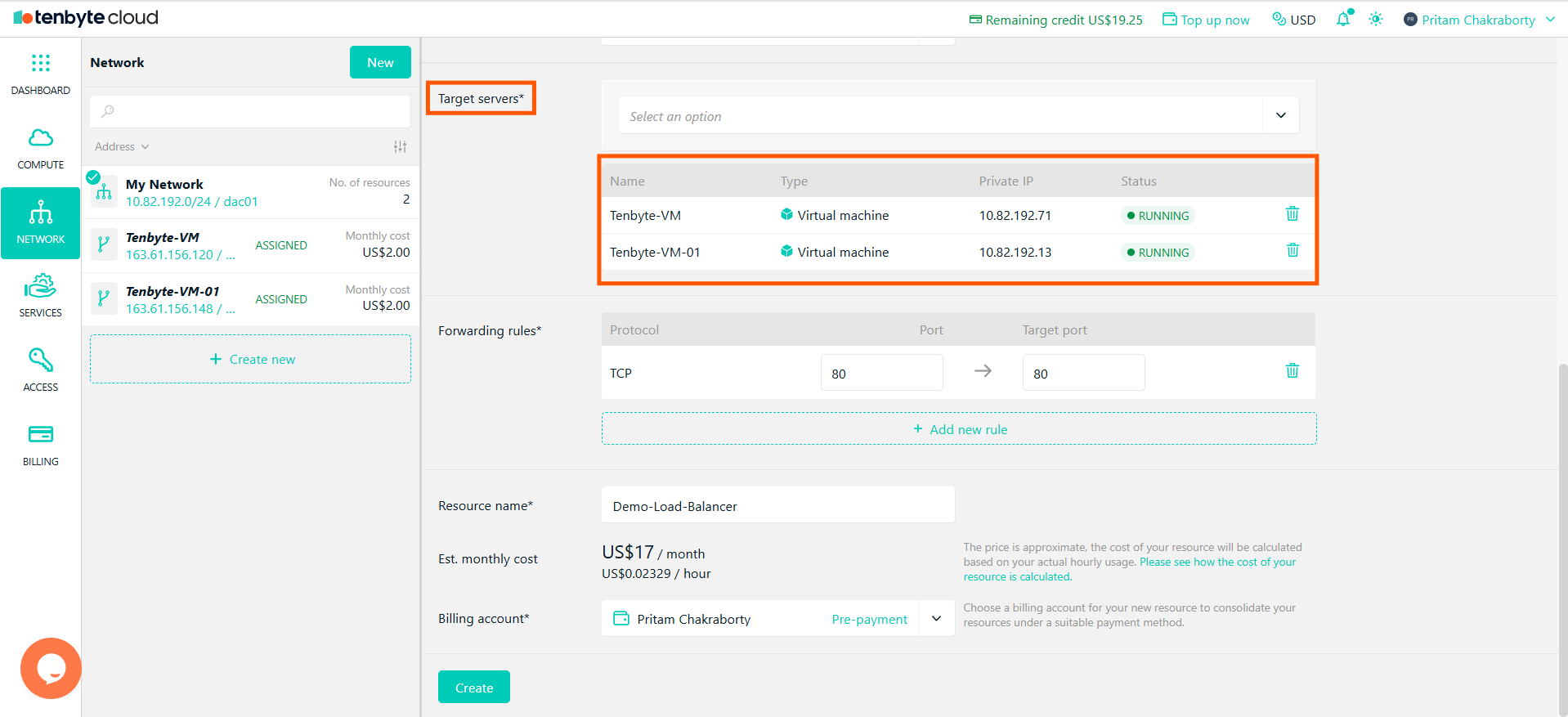
Select your Target VMs
7. Configure Forwarding Rules
-
Set up forwarding rules to define how the load balancer should route traffic to the VMs:
- Protocol: Select TCP.
- Port: Enter the source port.
- Target Port: Set the target port for the VM.
-
You can add multiple rules if your application requires different ports or protocols.

Configure Forwarding Rules
8. Review your Configuration and Create
-
Provide a Resource Name. Review the configurations, including the Public IPv4, VPC network, target servers, and forwarding rules. Once everything looks good, click Create to set up the load balancer.
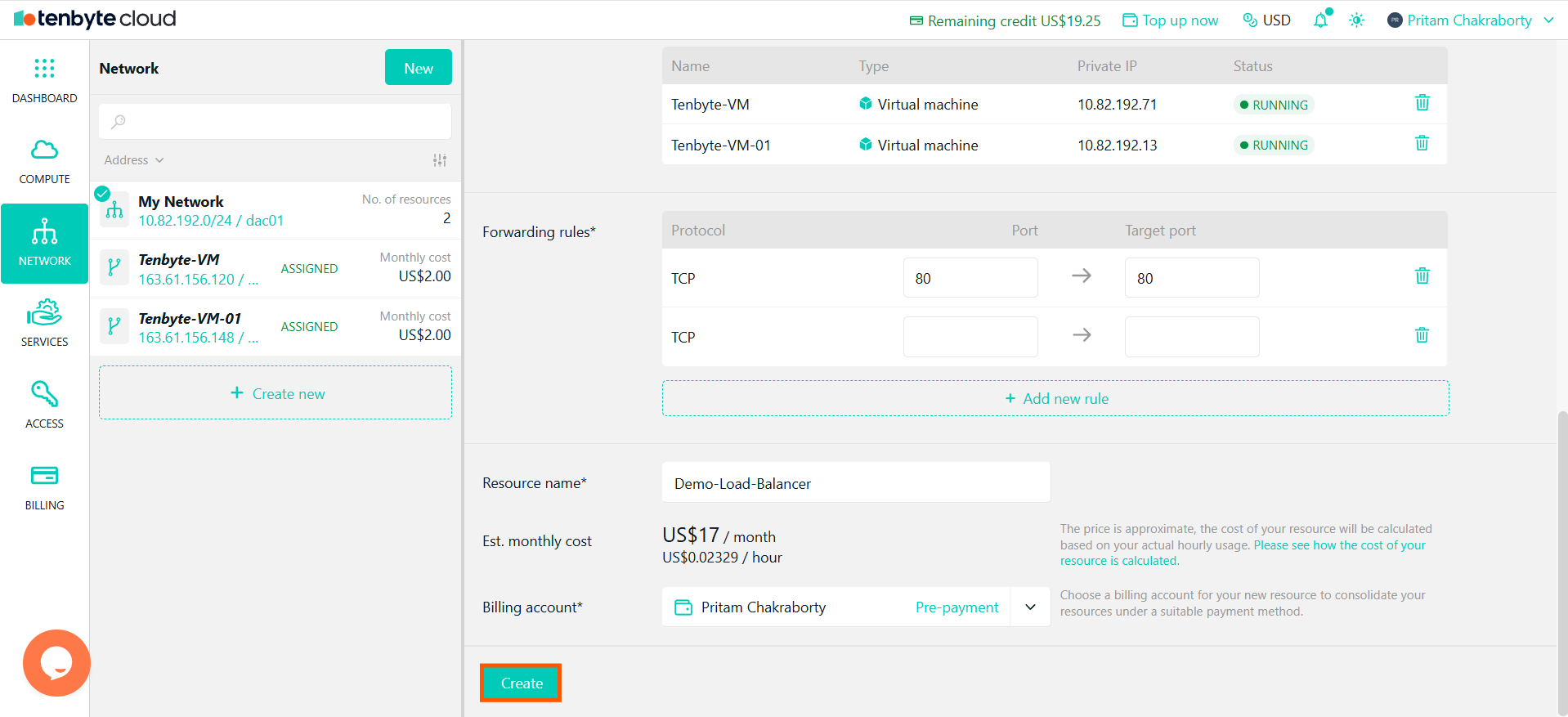
Create your Load Balancer
9. View Your Created Load Balancer
-
After creating your Load Balancer, you can view and manage it from the Load Balancers section in the Network tab.
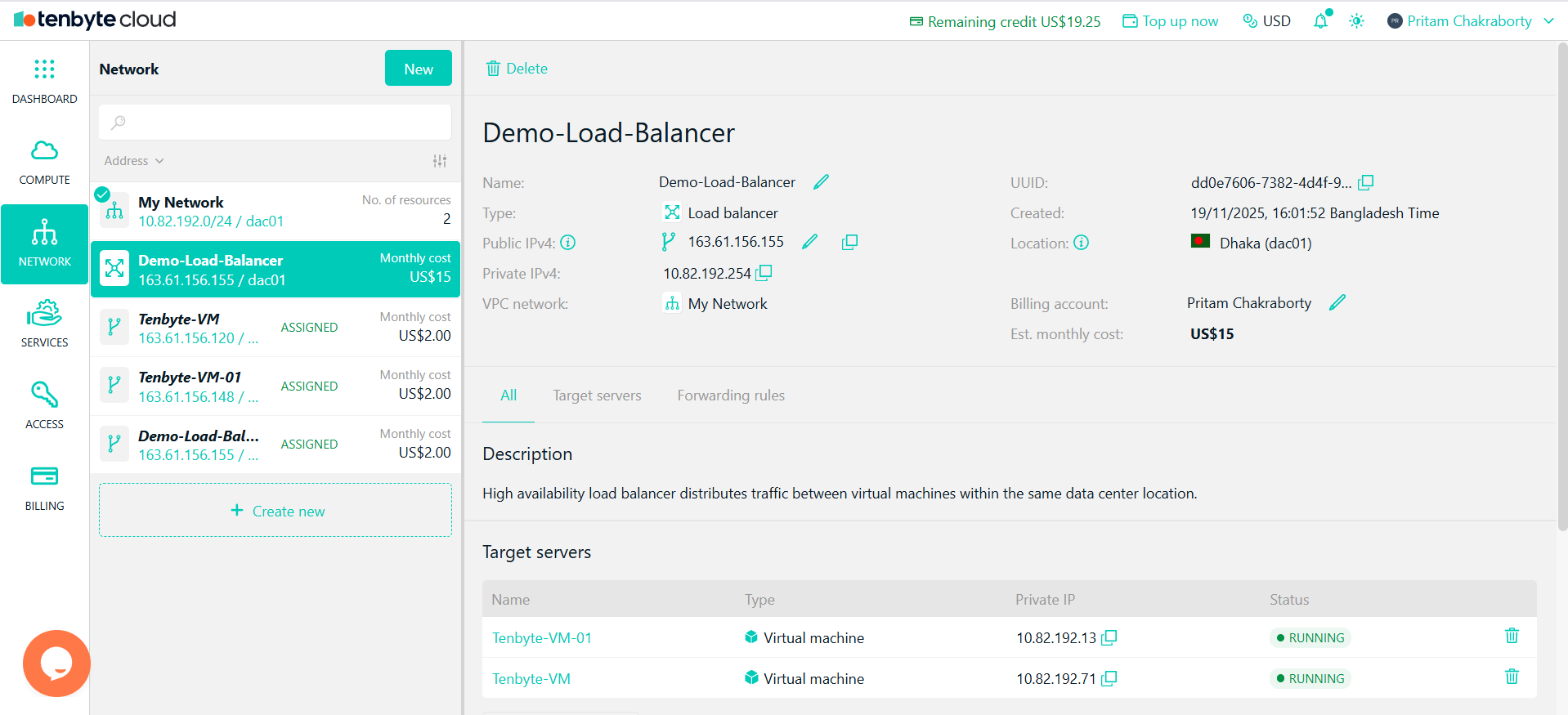
View your Load Balancer
-
The Load Balancer will appear in the Network section with details like:
- Name: The name you assigned to the load balancer.
- Public IPv4: The external IP assigned to the load balancer.
- Private IPv4: The internal IP assigned to the load balancer.
- Target Servers: The VMs linked to the load balancer. You will see the assigned VMs listed along with their Private IPs.
- Status: The status of the load balancer.
- You can manage and configure the load balancer from here, including adjusting settings or adding new target servers.