

Tenbyte Cloud Block Storage
This guide shows you how to create and manage block storage for your virtual machines in Tenbyte Cloud.1. Select Compute Section
-
From the left sidebar, click on Compute to view your created virtual machines (VMs).
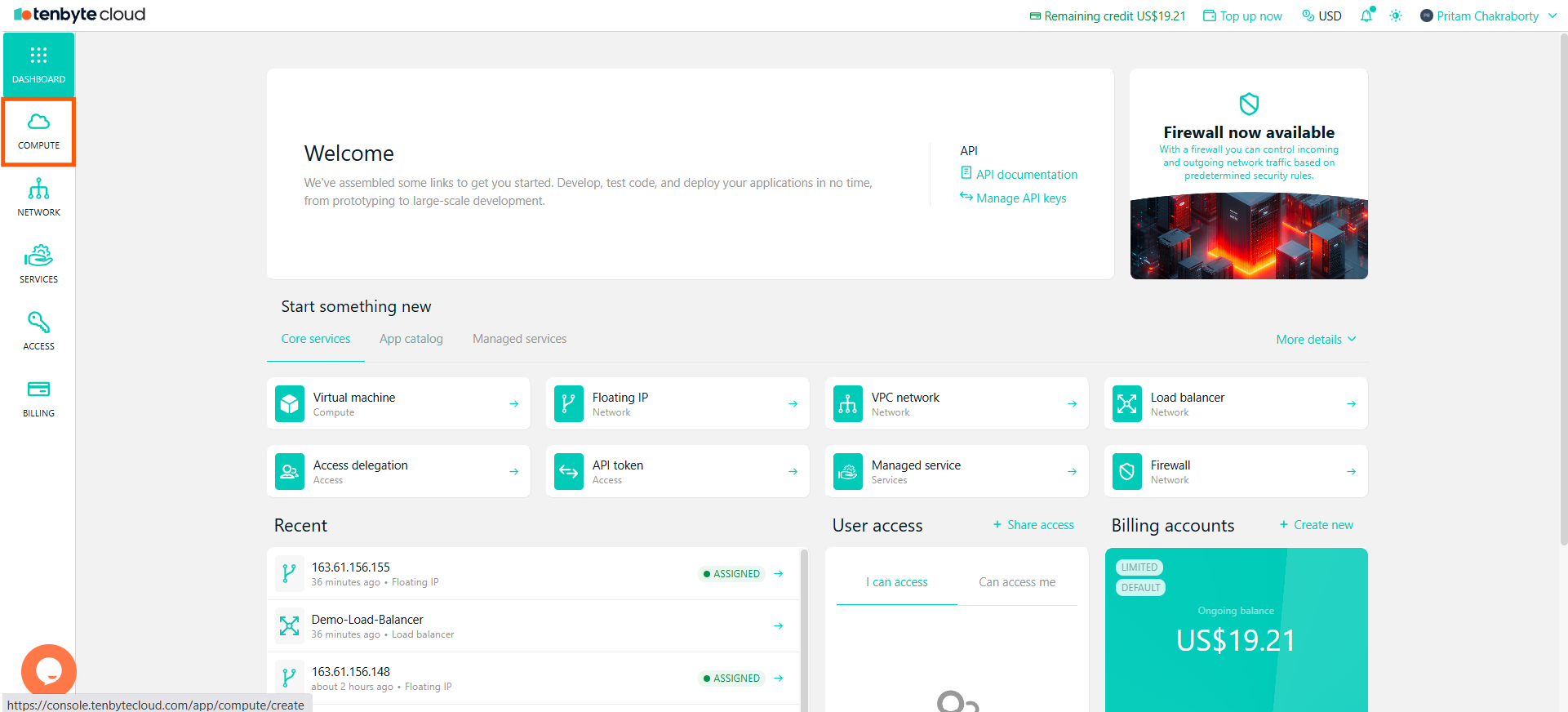
View your created Virtual Machines
2. Choose Your Virtual Machine
-
In the Compute section, you will see a list of all your created VMs.
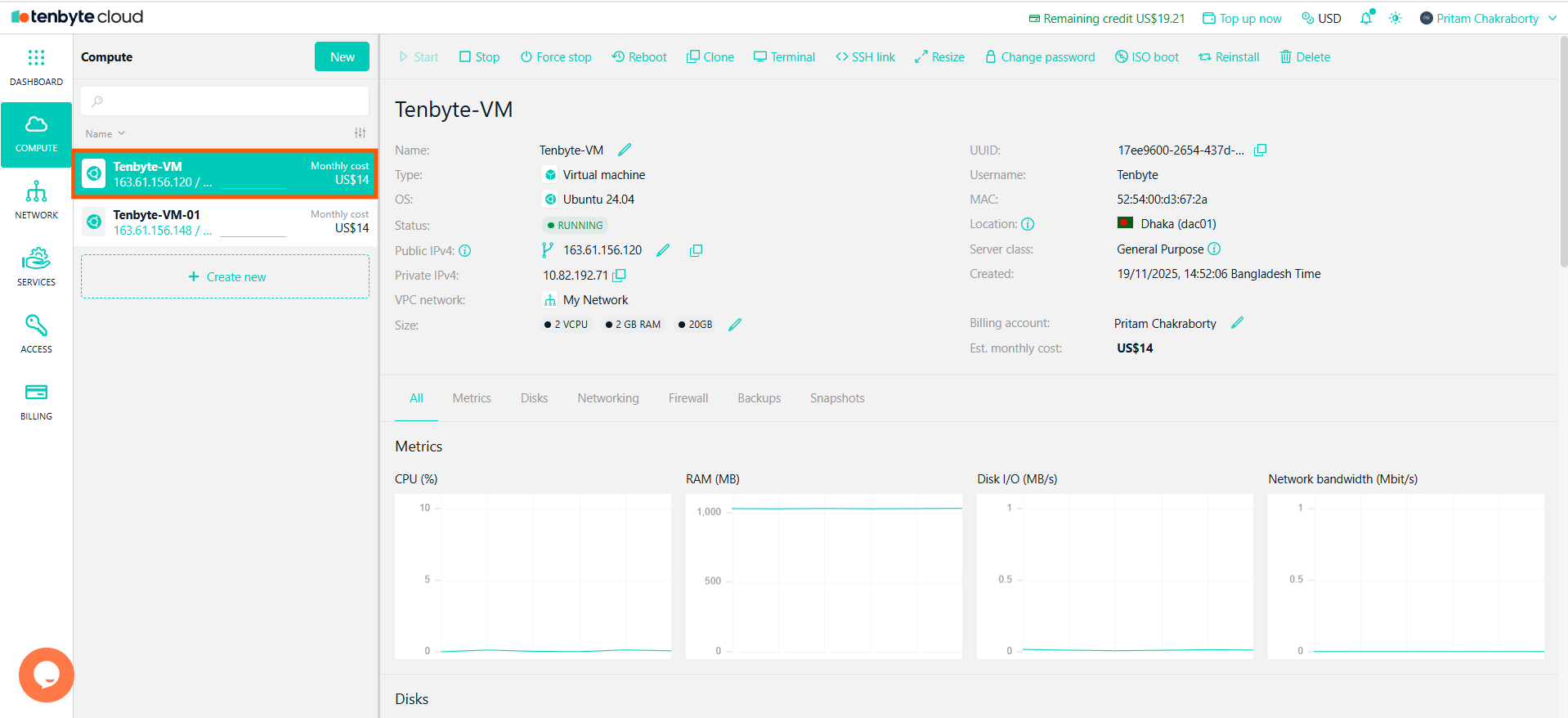
Select the VM
- Select the VM you want to manage.
3. Navigate to the Disks Tab
- After selecting your VM, you will see a detailed overview of the machine.
-
Click on the Disks tab to manage storage settings for the selected VM.
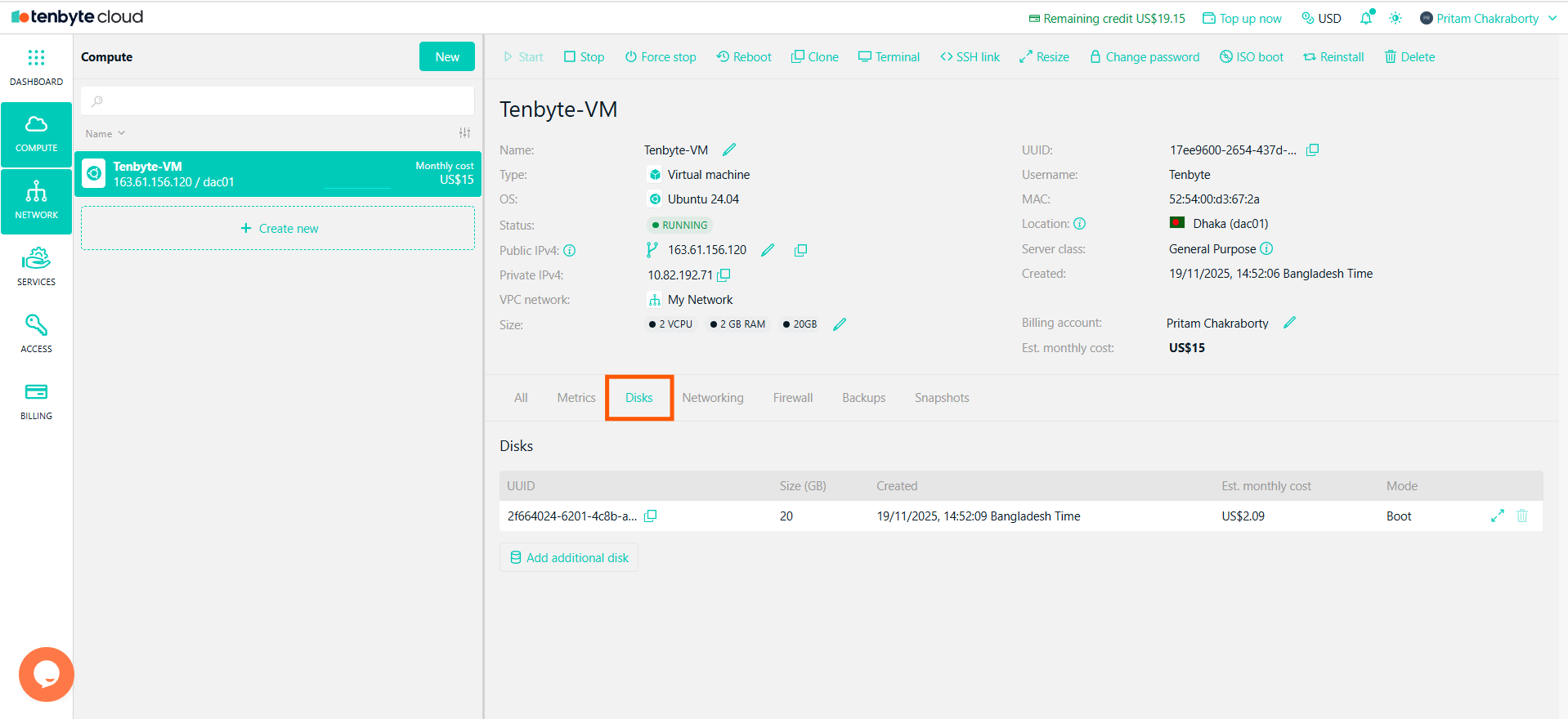
Navigate to the Disks Tab
4. View Existing Disks
-
The Disks section will display the disks attached to your VM.
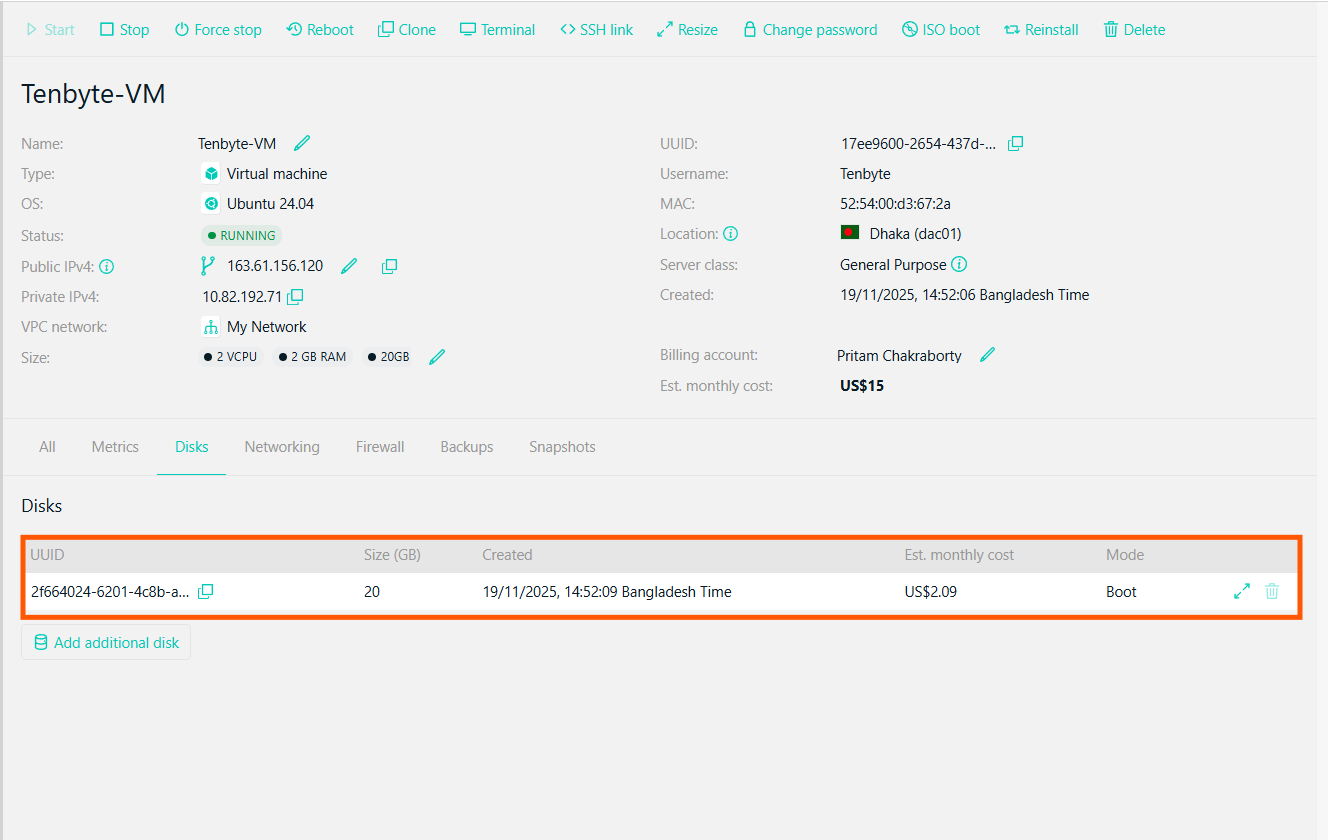
View Existing Disks
-
You may see the Boot Disk with details such as:
- UUID: The unique identifier for the disk.
- Size: The disk size.
- Created: The creation timestamp.
- Est. Monthly Cost: The cost for the disk storage.
5. Add Additional Disk
- To add a new disk, click on Add additional disk. You can choose the disk size based on your requirements and attach it to the VM.
-
Click on the Add to add additional disk.
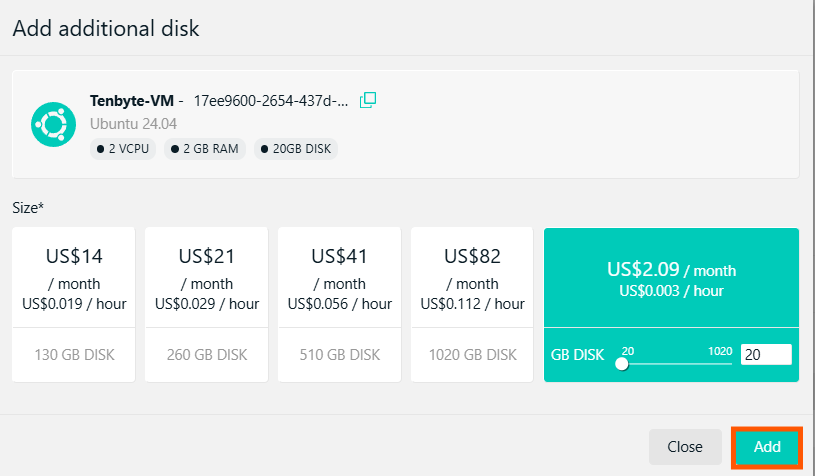
Add Additional Disk
6. Manage Disks
- You can resize, or delete existing disks.
- Next to the disk you want to resize, click on the Resize button.
- Adjust the disk size according to your needs by modifying the disk size.
-
After setting the desired size, click Resize to apply the changes.
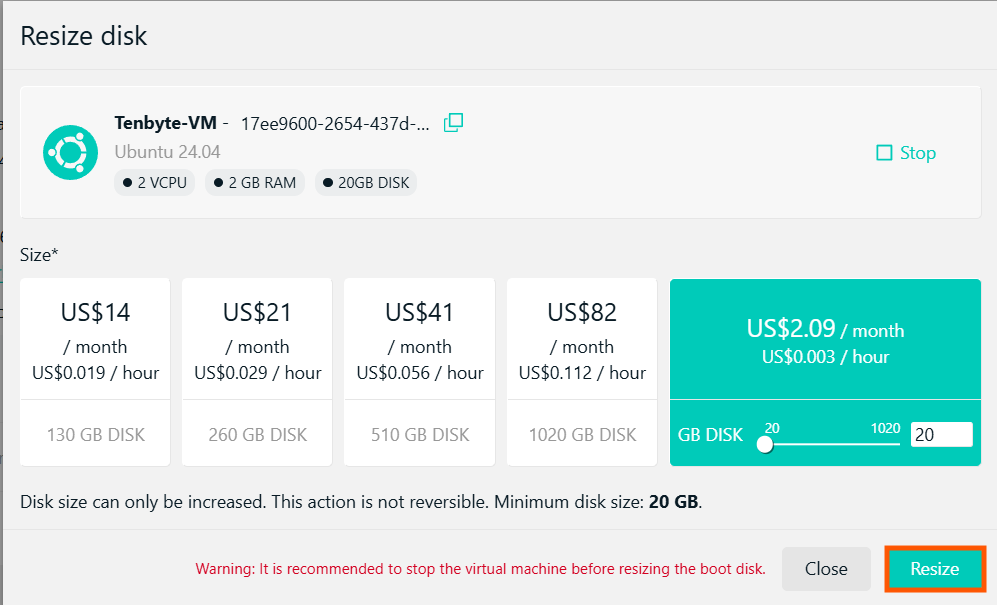
Resize your Disk