

Tenbyte Backups
This guide shows you how to set up and manage backups for your virtual machines in Tenbyte Cloud.1. Select Compute Section
-
From the left sidebar, click on Compute to view your created virtual machines (VMs).
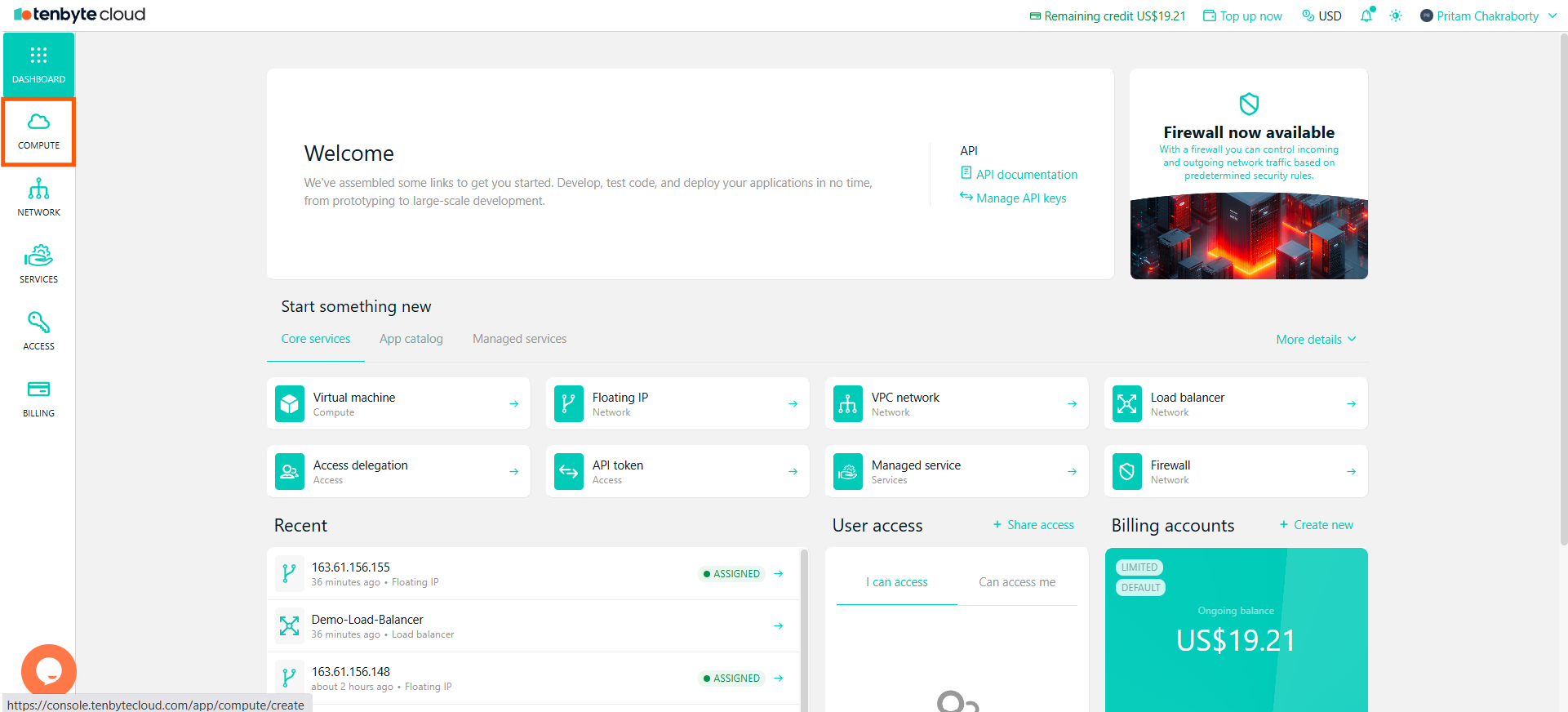
View your created Virtual Machines
2. Choose Your Virtual Machine
-
In the Compute section, you will see a list of all your created VMs.
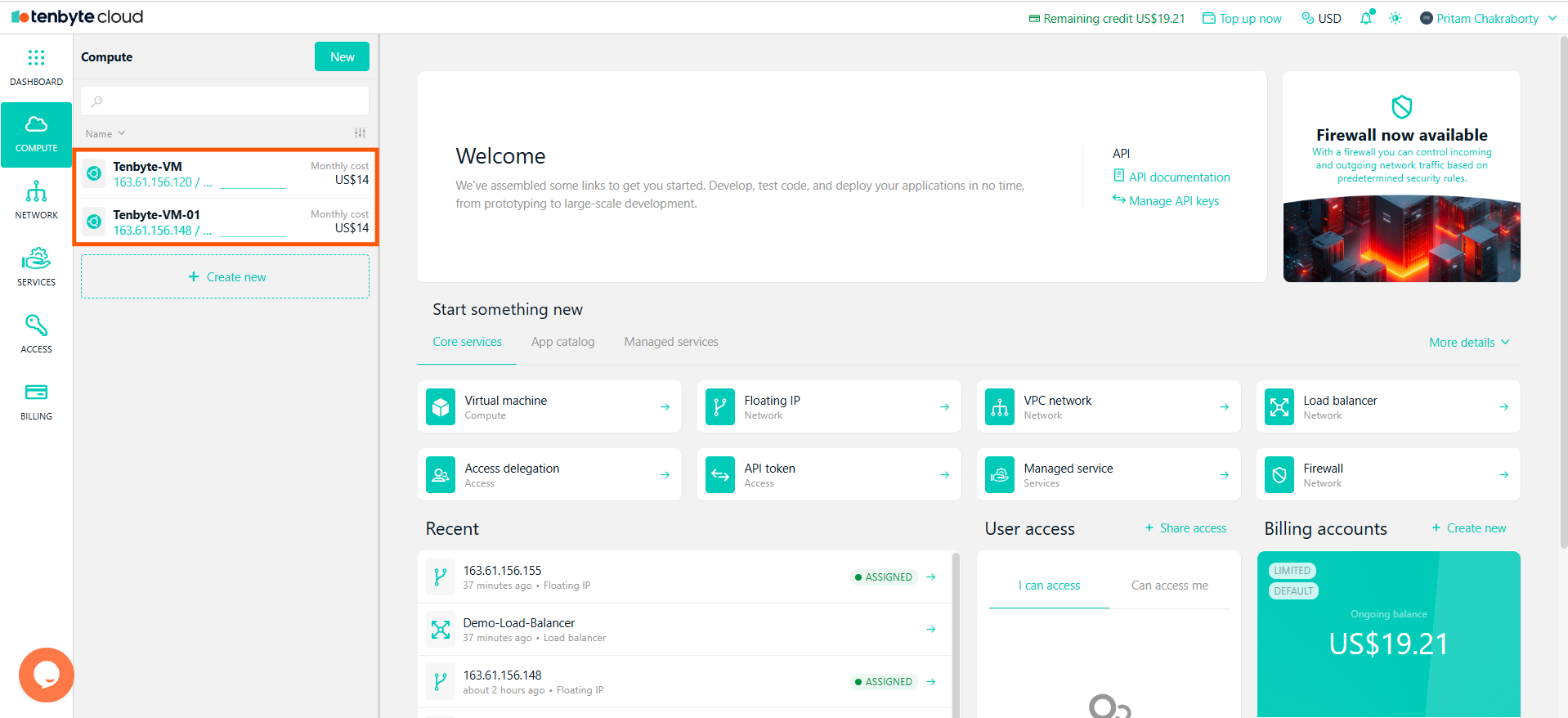
List of all Created VMs
- Select the VM you want to manage.
3. Navigate to the Backups Tab
- After selecting your VM, you will see a detailed overview of the machine.
-
Click on the Backups tab to manage backup settings for the selected VM.
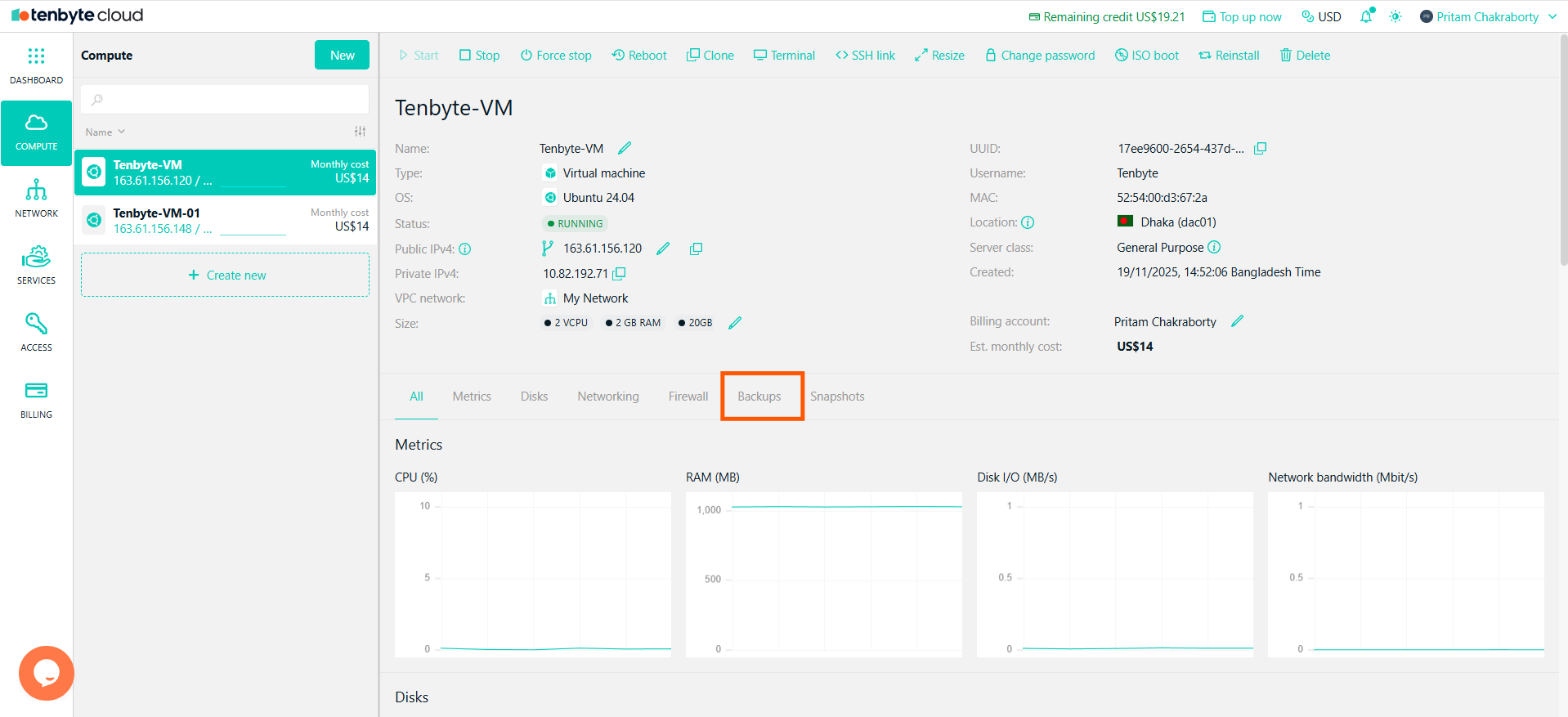
Navigate to the Backups Tab
4. Enable Backups
- When you enable backup service, an automatic disk-level backup will be created from the boot disk of your VM.
A backup will be created once a week and will be stored for a one-month period. You will have up to 4 backups stored at any given time.
- The estimated cost per backup will be displayed.
-
To start creating backups, simply click Enable backups.
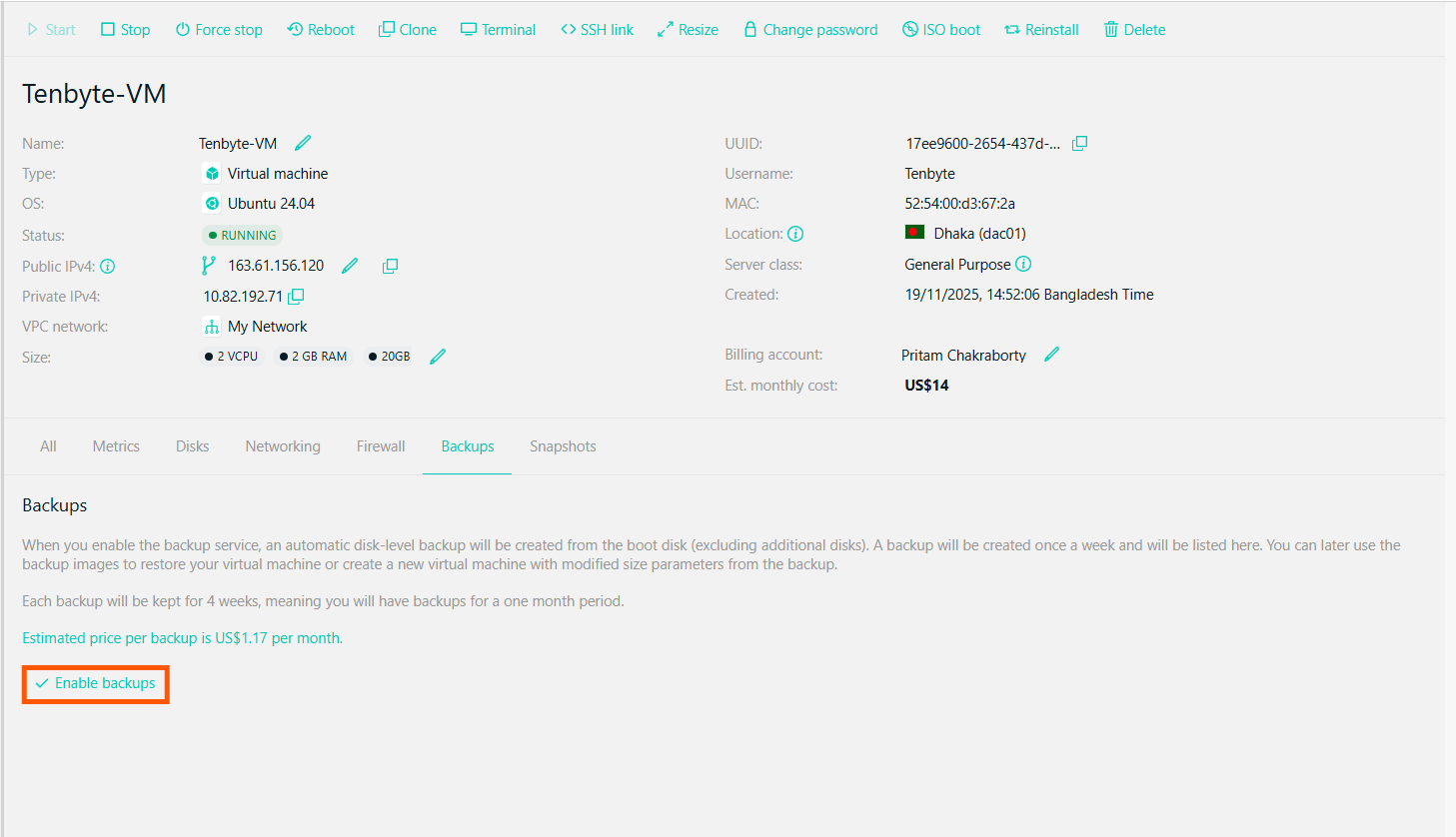
Enable Backup
7. View Backup History
-
Under the Backups section, you can view a list of all backups, including details like the UUID, size, and creation date of each backup.
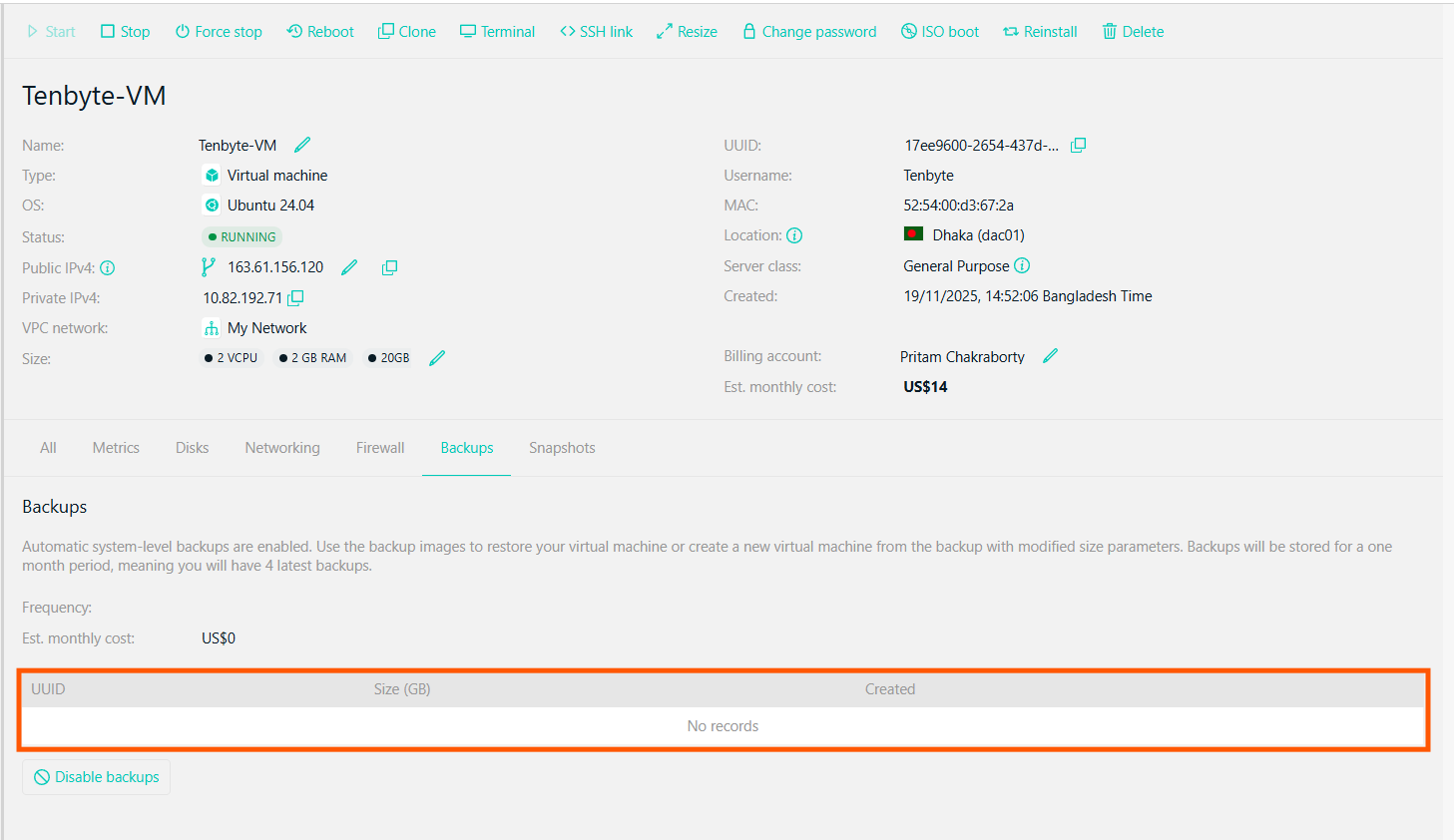
View Backup History
8. Disable Backups
-
If you no longer wish to keep backups, you can choose to disable backups by clicking the Disable backups option.
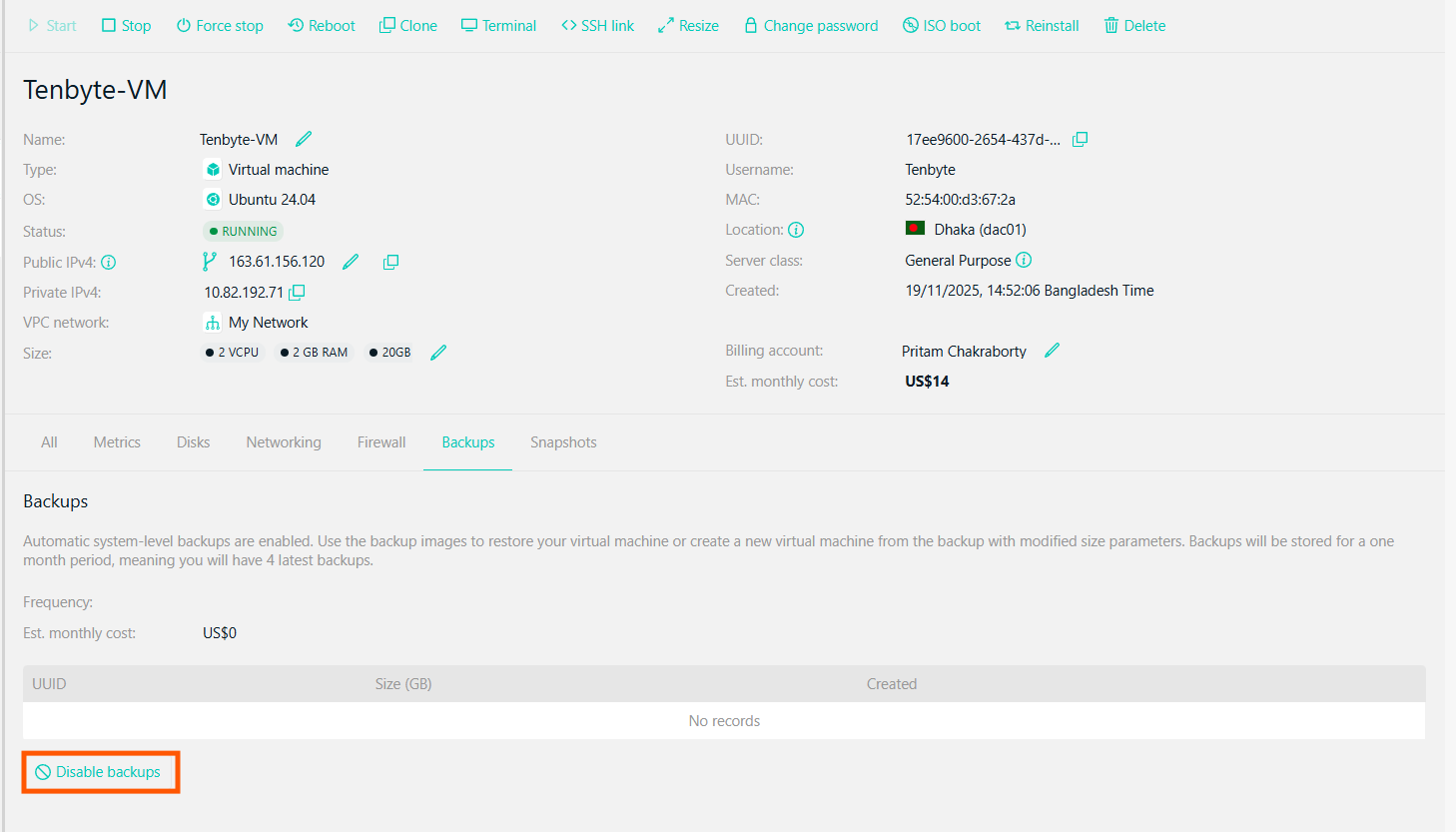
Disable Backups
9. Restore or Create New VM from Backup
- Use the backup images to restore your VM to a previous state or create a new VM with the same configuration and modified size parameters.