

Set Up Your Distribution
Configure a CDN distribution, add your origin, and start caching content across Tenbyte’s global edge locations. In a few quick steps, you can create your first CDN distribution.1. Create a CDN Distribution
Follow these steps to set up your first CDN distribution in Tenbyte CDN.Name Your Distribution
- In the Distribution Name field, enter a clear name for your distribution.
Choose a Domain Type
Under Domain Type, select how the CDN domain will be assigned for your distribution.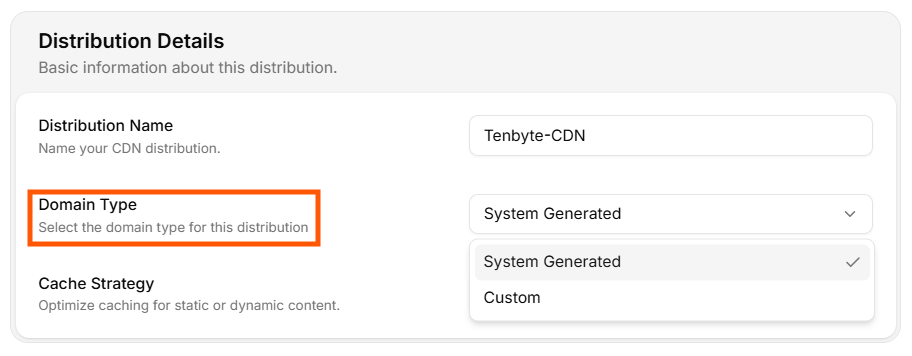
Domain Type
- System Generated: Tenbyte automatically provides a CDN domain for you.
- Custom: Use your own domain for the CDN (e.g.,
cdn.yoursite.com).
Choose a Cache Strategy
The Cache Strategy determines how Tenbyte CDN caches your content.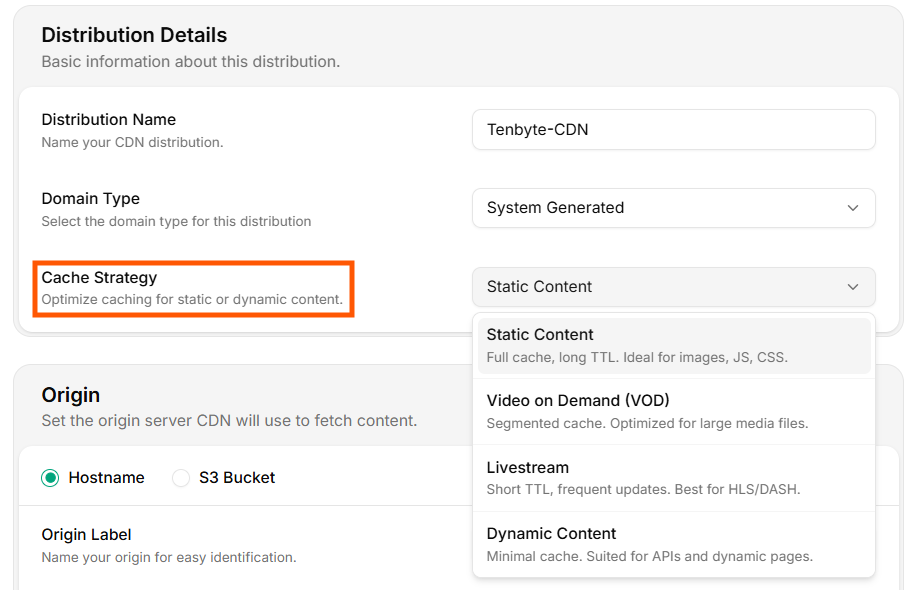
Cache Strategy
- Static Content: Full cache with long TTL. Best for files that rarely change, such as images, JavaScript, CSS, fonts, and other static assets.
- Video on Demand (VOD): Segmented caching optimized for large media files. Used for MP4, HLS, DASH, and other video playback formats.
- Livestream: Short TTL with frequent refresh. Ideal for live streaming workflows where segments update continuously (HLS/DASH live).
- Dynamic Content: Minimal caching suitable for APIs, pages with dynamic data, and frequently changing responses. Use this when content must always be fresh.
3. Set the Origin
The Origin is the server or storage location where your content is stored. Tenbyte CDN fetches files from this location when serving users. You can set your origin using either a Hostname or an S3 Bucket.Hostname Origin
Select Hostname if your files are hosted on a web server, application server, or any publicly reachable URL.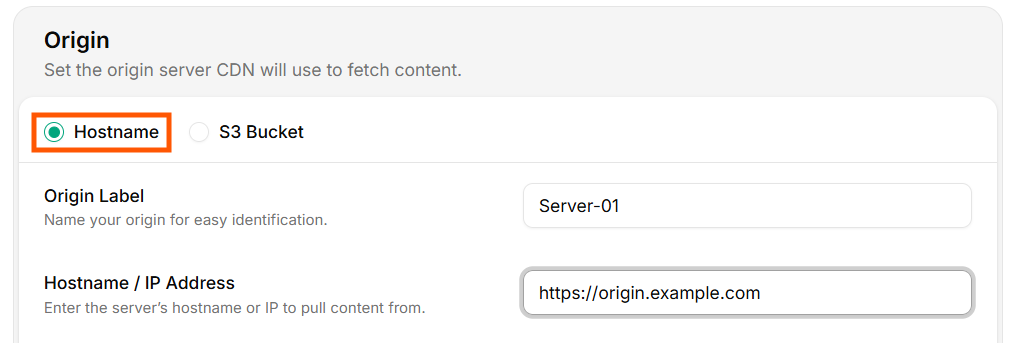
Hostname Origin
- Origin Label: Give your origin a name for easy identification.
- Hostname / IP Address: Enter the server’s full hostname or IP address.
S3 Bucket Origin
Select S3 Bucket if your files are stored in an S3-compatible storage service.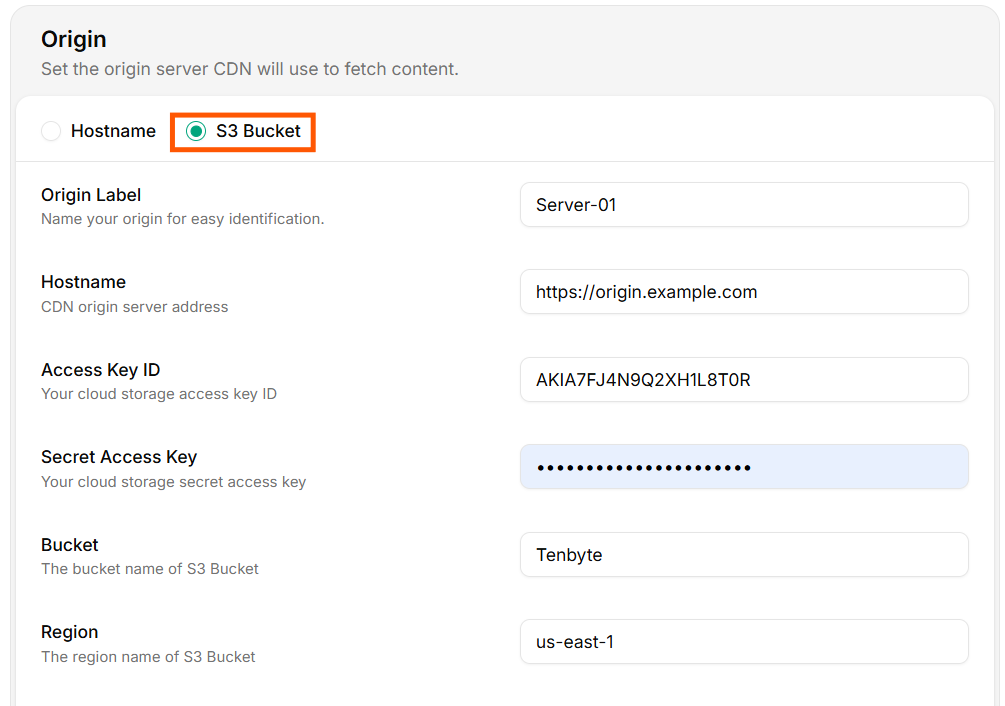
S3 Bucket Origin
- Origin Label: Name your origin for internal identification.
- Hostname: Enter the hostname of your S3-compatible storage.
- Access Key ID: Provide your storage access key for authenticated access.
- Secret Access Key: Enter the secret key associated with the access key.
- Bucket: Specify the bucket name where your files are stored.
- Region: Choose the region of your S3 bucket.
Advanced Settings
The Advanced Settings section allows you to configure additional request headers that Tenbyte CDN will send to your origin server.- Host Header: Use this field to set a custom Host header for CDN requests.
- Key: The header name.
- Value: The hostname your origin server expects.
These settings are optional and are used when your origin requires specific headers for routing or authentication.
- Your server uses virtual hosting
- You want the CDN to forward a specific domain instead of the default origin URL
- Your backend needs a matching Host header for SSL or routing rules